Delete duplicate photos on a Mac: deciding which copy to keep
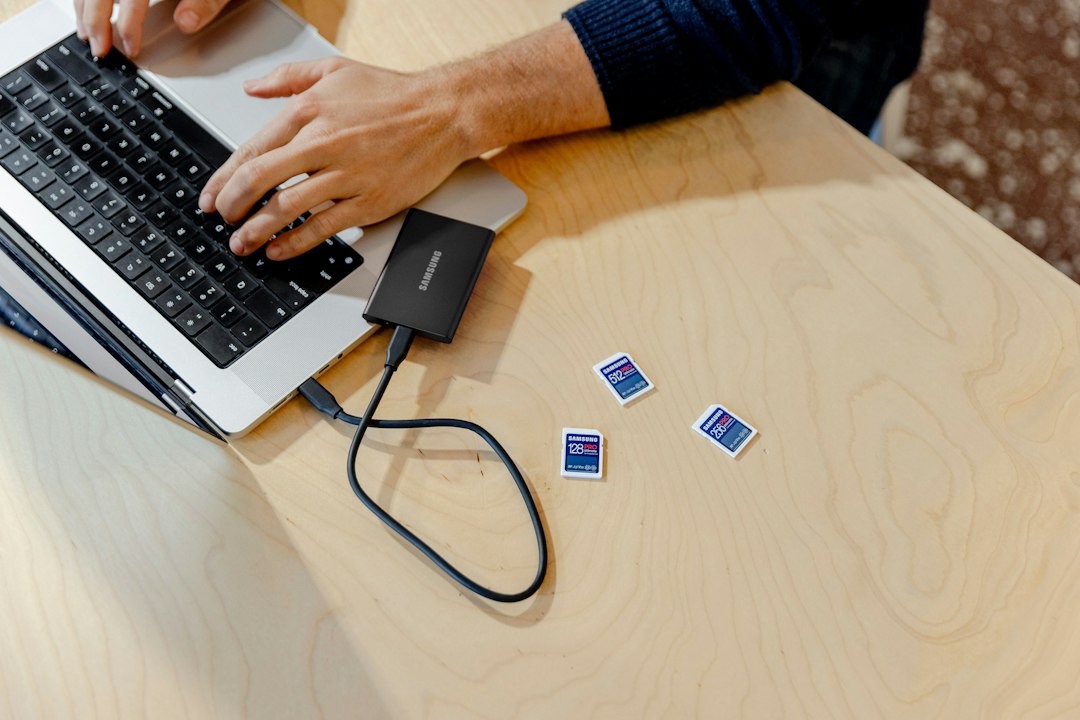
The storage bar is red, the Photos library is the biggest slice, and the obvious move is to hunt for duplicates. Then the candidate list appears and the work stops, because nothing on it is obviously the copy to discard. Two versions of the same shot rarely differ in a way a list can show. One is larger. One has an edit on it. One has the location and the album membership attached. Getting that judgement wrong costs more than the gigabytes it recovers, because a photo cannot be rebuilt from a smaller copy of itself. So the order matters: settle what counts as the copy worth keeping, then delete.
What the Duplicates album actually does
For anything already imported into the library, macOS has this covered without extra software. Apple describes the mechanism plainly.
You can easily remove duplicate photos and videos from your library. If your library has duplicate photos or videos, they appear automatically in the Duplicates collection in Utilities. (Depending on the size of your library, duplicates may take some time to appear as Photos analyzes your photos.) Source: support.apple.com
The collection sits under Utilities in the sidebar. If it is not visible, hold the pointer over Utilities and the control to reveal it appears. The Photos User Guide carries this page for macOS Ventura 13 and every release after it, so on an older system the album will not be there at all.
The important detail is the word used for the action. It is a merge, not a delete.
One original photo or video appears where the selected duplicates were located in your library. Deleted duplicates appear in Recently Deleted, where you can recover them within 30 days or permanently delete them. Source: support.apple.com
That 30 day window is the reason to start here rather than in the terminal. A wrong call is reversible for a month. Command-A selects every group at once, which is tempting on a library with thousands of rows, and it is also the moment to slow down: the grouping is an estimate, and a group with three rows in it is not necessarily three copies of one moment.
The album has a hard boundary worth stating early. It only sees what is inside the library. Exported files, a folder of images pulled off a camera card, screenshots saved to the desktop, anything received and saved outside Photos: none of it appears here, no matter how many copies exist.
Identical and similar are two different problems
Two photos can be duplicates in two unrelated senses, and the distinction decides whether a machine or a person makes the call.
Byte for byte identical files are safe to automate. The same hash means the two files are interchangeable, so a rule can pick either one and nothing is lost. Importing the same memory card twice produces this kind of pair, usually under two different filenames.
Everything else is a judgement. A photo re-exported at a smaller size, re-compressed by a messaging app, or saved again after a crop is visually the same picture and a completely different file. Hash comparison will not group them. Visual similarity matching will, and it will also group the burst frames that were kept on purpose and the two crops of one image that serve different uses.
So the handling splits. Identical matches can be processed as rows in a list. Similar matches have to be looked at as pictures, side by side, at a size where the difference is visible. Processing a similarity list as text is a decision to skip the decision.
Screenshots deserve their own pass. Capturing the same screen repeatedly produces images that look nearly identical and share no bytes, which means similarity matching floods with them while hash matching ignores them entirely. The useful rule there has nothing to do with duplication: keep the last capture of each session and drop the earlier ones by timestamp.
Inside the library and outside it
Most photo cleanup accidents come from treating one storage location as though it were the other.
The Photos library is a package. Images sit inside it, and opening it in Finder or reaching into it from a shell to remove individual files leaves the library's internal records pointing at files that no longer exist. The result is a broken library rather than a smaller one. The rule is short: contents of the library move only through Photos.
Outside the library, images are ordinary files and ordinary tools apply. Camera card imports staged in a folder, a Downloads directory full of saved images, an export folder, media pulled out of a messaging app backup. Hashing works here, and a candidate list can be produced in one pass.
find ~/Downloads ~/Pictures/Exports -type f -size +200k \
  \( -iname '*.jpg' -o -iname '*.heic' -o -iname '*.png' \) \
  -exec shasum -a 256 {} + | sort > /tmp/photo-hashes.txt
Sorting on the hash column puts matching files next to each other, and writing the result to a file means it can be re-sorted by parent directory. A list showing one image in eight places is hard to act on. The same list showing that seven of those eight live under one old export folder collapses into a single decision.
One configuration blurs the boundary and is worth checking before starting. Photos can import by reference instead of copying originals into the library. When that setting is in use, the library holds pointers and the actual files stay where they were, so deleting the outside folder as a pile of duplicates removes the originals the library depends on. Check that setting first, because it changes which of the two rules above applies.
iCloud Photos changes what deleting means
With iCloud Photos turned on, merging duplicates on a Mac is not a local edit. The result reaches every device on the account, so the photo stops existing on the iPhone as well. That is correct behavior and it widens the blast radius of a mistake.
Two consequences follow. First, do the work on one device and let synchronization finish before continuing. Running the same cleanup on a Mac and a phone at once produces a result that depends on which change arrived first, and no record of what was kept. Second, watch the right number. When Optimize Mac Storage is enabled, what sits on the local disk is a display sized version and the full resolution file lives in iCloud. Merging duplicates in that state barely moves local free space; the space recovered is on the iCloud side of the account.
Shared albums and a shared library add a third consideration. Removing a photo from a shared collection removes it for everyone who has not saved their own copy. Anything currently shared is better treated as referenced material and excluded from the cleanup than argued about afterwards.
Ranking the copies: what actually decides
When two candidates sit side by side, a fixed order of questions removes most of the hesitation. The order runs from irreversible to reversible.
| What to compare | Keep the copy that | Why it ranks here |
|---|---|---|
| Resolution and file size | Is larger | Downscaling is repeatable, upscaling is not |
| Edits | Carries the adjustments | Inside Photos an edit stays revertible; an export does not |
| Attached information | Has date, location, people, album membership | Metadata stripped by a messaging app cannot be restored |
| References | Is in an album, a shared album, or linked from a document | A reference points at one path, so the rest are unreferenced by definition |
| Modification date | Nothing. Ignore it | A plain copy gets today's timestamp, so the newer file is often the backup |
That last row is the one that catches people, and it is worth being concrete about. Copying a file with cp writes the current time onto the destination while the source keeps its own. A photo last edited in January, copied today, produces a copy dated today and an original dated January. Any automatic rule set to keep the newer file will keep the copy and delete the original. Files moved with cp -p or rsync -a retain their timestamps, which means a single candidate list can contain files whose dates mean two different things.
Where the five rows disagree, or where a pair is genuinely ambiguous, move the candidate to a dated folder instead of deleting it. Photos are not regenerable, so there is no reason to force a decision on a schedule.
Where the duplicates came from
Cleanup that does not close the inbound routes runs again next quarter. On a working Mac the routes are few and each leaves a distinct trace.
Importing the same card or camera twice produces byte identical pairs under different names. Saving images received through a messaging app produces re-compressed near matches with the location data missing. Exporting an edit leaves the original and the export side by side, and usually only the export is needed. Reading an old library off a backup or another Mac duplicates entire date ranges at once, which is the cheapest case to fix because it collapses into one question. Saving from a shared album leaves the uploader's version and a personal copy.
One route behaves differently from the rest and is worth separating out. A library read in from a backup does not trickle duplicates in over months; it doubles a whole span of dates in a single action. That makes it the largest recovery available and the easiest to evaluate, because the question is not which photo to keep but whether the imported range was already present. Sorting the Duplicates album by date and checking the boundaries of that range answers it in a few minutes.
Each route closes with a habit rather than a tool. Mark cards as imported. Turn off automatic saving in messaging apps. Point exports at one folder that gets emptied weekly. Read a recovered library into a separate library rather than merging it blind. Those four changes cost less than the next cleanup pass.
Where the time actually goes
Counting the round trips explains why this job stalls. A hash list appears in a terminal. Confirming what a given file is means switching to a Finder window, pasting a path, and looking at a preview. Then back again for the next group. Each trip is a few seconds, and three hundred candidates turns that into a full day. The pattern is the same in the other direction: an image spotted in a folder has to have its path copied before any command can touch it.
This is the argument for a file manager with a built-in terminal. When the listing and the prompt share one working directory, the path copy and the window switch disappear, and a candidate can be previewed, quarantined, and moved on from in one place. The Features page describes that layout, and the handoff from a phone camera roll to the same workspace is covered in From iPhone and iPad.
What to change first
Work the Duplicates album before touching anything with a shell, because merging there is reversible for 30 days and deleting from a shell is not. Then, if the remaining friction is switching windows to confirm each candidate, that is a layout problem rather than a detection problem, and Atriens is built around that gap.
Frequently asked questions
Why does the Duplicates album not show photos that are clearly the same?
The grouping looks for identical or near identical items, so a photo that was re-exported at a different size, or re-compressed by a messaging app, is a different file and will not be grouped. Analysis also takes time on a large library, so a freshly imported batch may not appear for a while. Anything stored outside the library is never included.
Does merging duplicates in Photos lose the better version?
Merging leaves one item in place of the group and moves the rest to Recently Deleted, where they can be recovered within 30 days. Because the window is that long, checking a handful of merged results before emptying Recently Deleted is enough to confirm the outcome without reviewing every group.
Is it safe to delete photos from inside the Photos library in Finder?
No. The library is a package with its own records of what it contains, and removing files from inside it leaves those records pointing at nothing. Deleting a duplicate that way tends to break the library rather than shrink it. Images stored outside the library are ordinary files and can be handled with ordinary tools.
Why did deleting hundreds of duplicate photos free almost no space?
Three causes cover most cases. Recently Deleted still holds the items, so the space is reserved for up to 30 days. Optimize Mac Storage is on, so the local files were small previews and the full versions live in iCloud. Or the pairs were clones on APFS, where two names pointed at one set of blocks and only one copy ever existed.